01 Administrator
The administrator gives you access
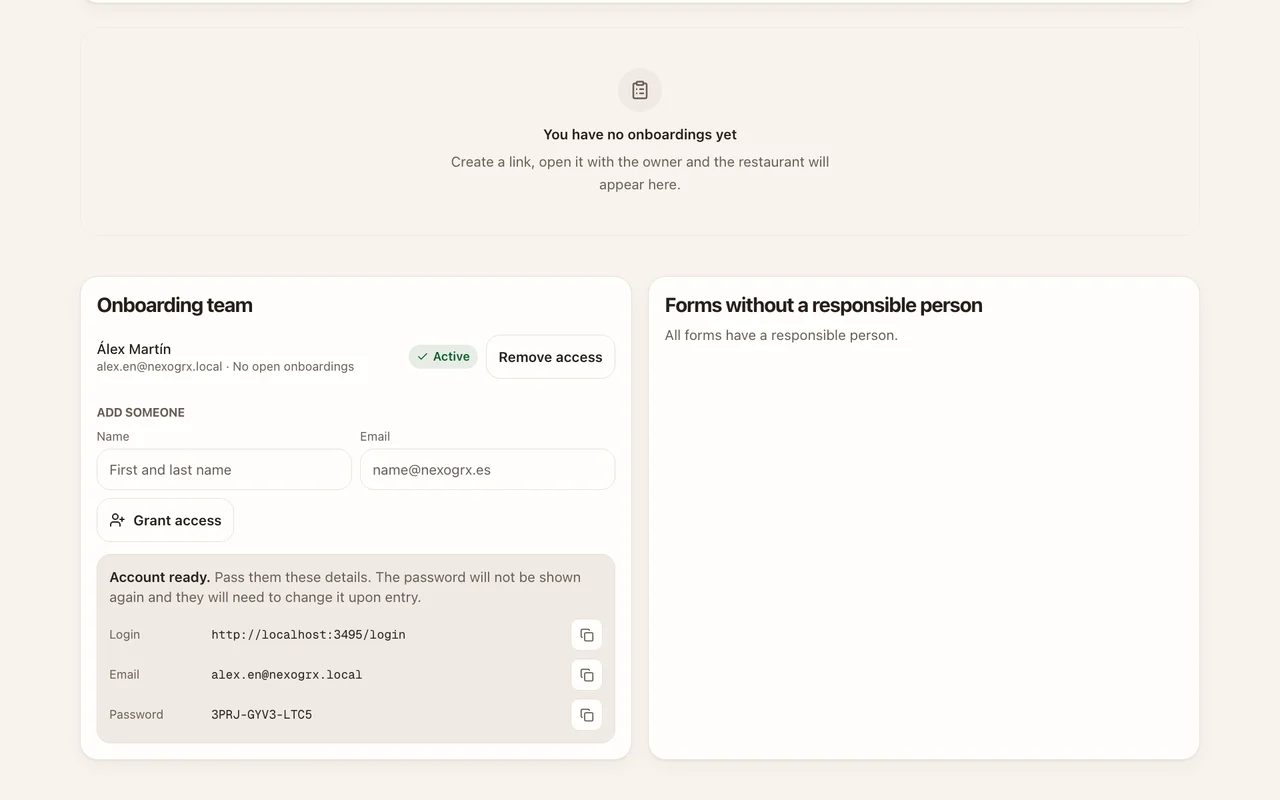
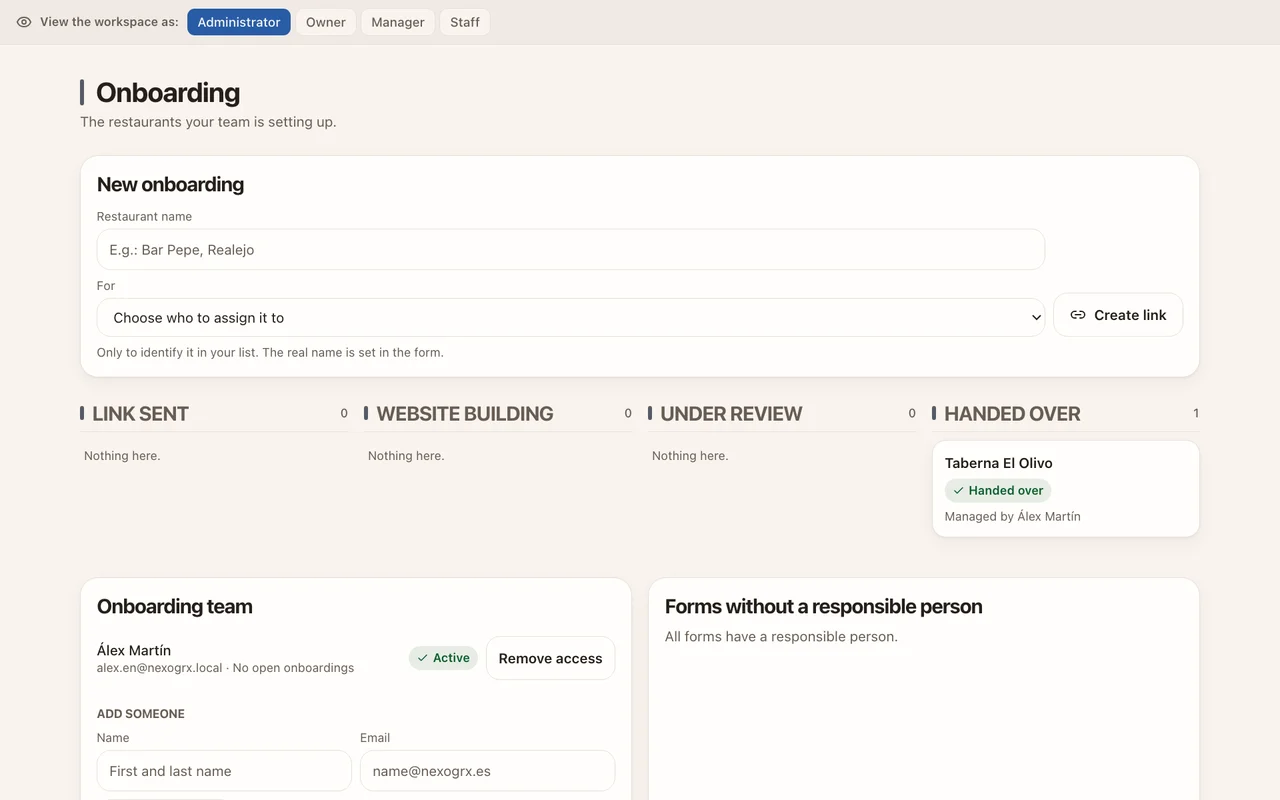
You start without doing anything. The administrator adds your name and e-mail in «Onboarding team» and passes you the sign-in address, your e-mail and a temporary password, shown only once.
For the NexoGRX onboarding team
You bring the information and check it. The website, the panel record and the menu create themselves. Every screen here is exactly as you will use it.
Ten steps, in this order
01 Administrator
You start without doing anything. The administrator adds your name and e-mail in «Onboarding team» and passes you the sign-in address, your e-mail and a temporary password, shown only once.
02 You
The first time, the panel asks for a password of your own. Go to admin.nexogrx.es/login with the temporary password and type a new one twice. You land on «Onboarding», your board, empty the first time.
03 You
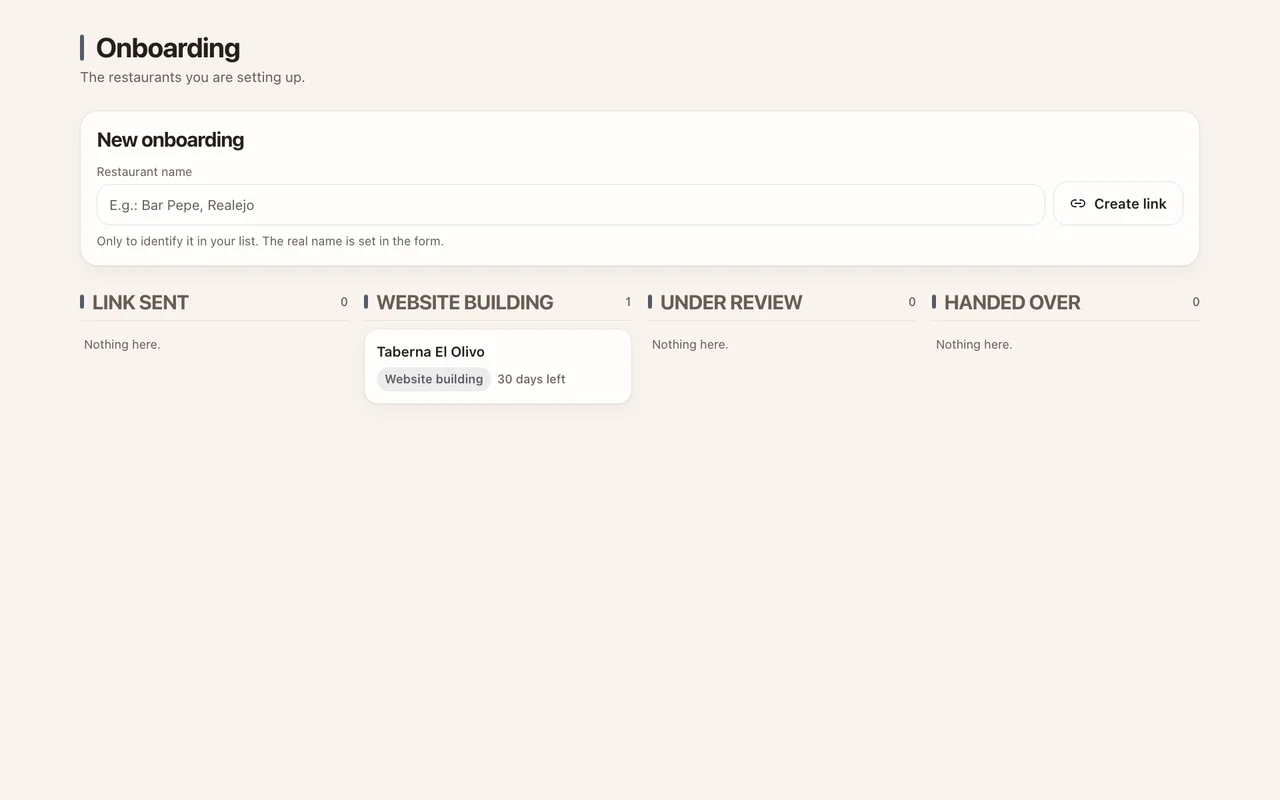
One link per restaurant, shown once. In «New onboarding» type the restaurant’s name, just so you recognise it, and press «Create link». Open it with the owner with «Open the form», or send it with «Send via WhatsApp». The link lasts 14 days and works once.
Copy it before you leave the screen: it cannot be shown again. If you lose it, create another.
04 You
A name and one contact are enough; the rest makes a better result. Three parts: «Your restaurant», «What you already have» and «What we’ll do with you». The owner’s e-mail creates their panel account. At the top you will see «NexoGRX is helping you.», which tells you the link is yours.
The form is not sent in this video: it is a test copy.
05 Automatic
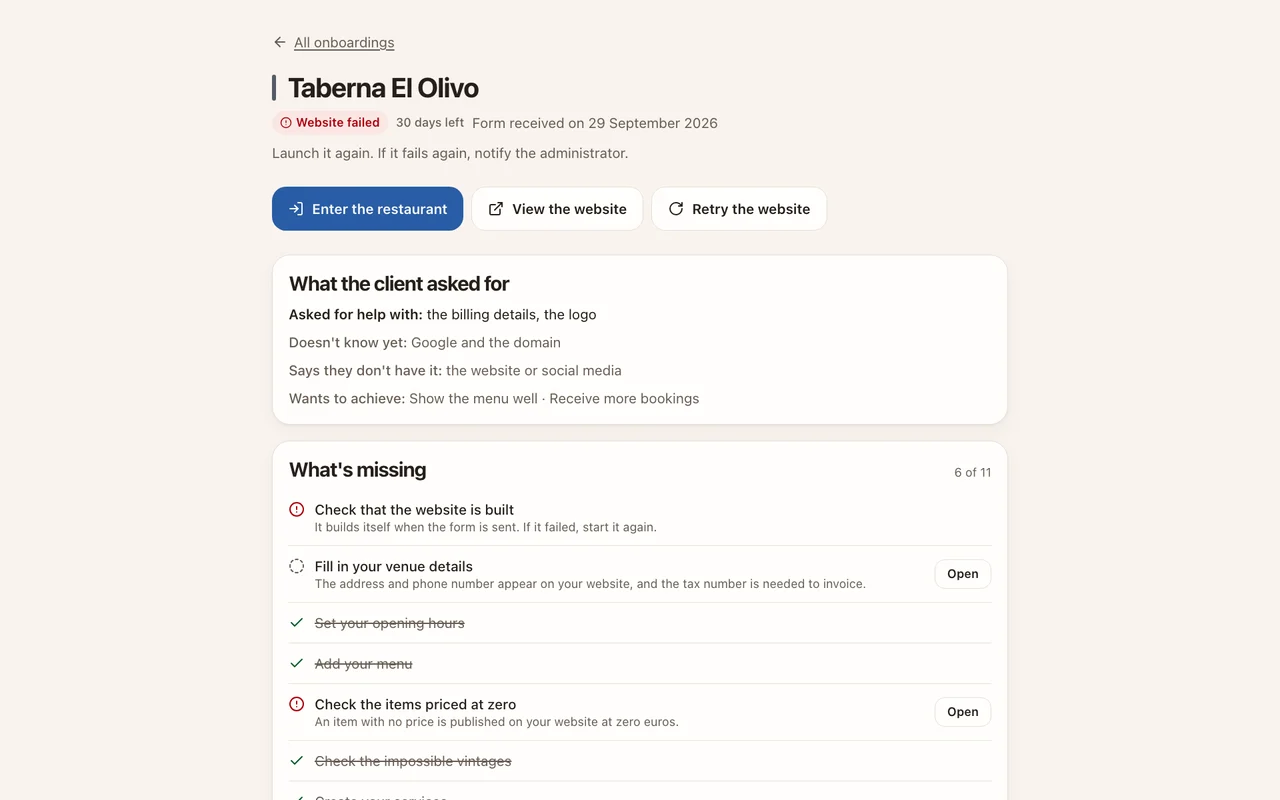
Once sent, the restaurant appears on your board. Columns: «Link sent», «Website building», «Under review» and «Handed over». Websites build one at a time, so it can take a while. If the website fails, open the onboarding and press «Retry the website».
06 You
The onboarding record tells you where to look. «What the client asked for» sums up what they wanted help with, what they don’t know yet and what they want to achieve. «What’s missing» ticks itself from the real data: website, venue details, opening hours, menu, prices at zero, impossible vintages, services, shifts and capacity, logo, tables and owner. «What they submitted» keeps their files.
Allergens are not on that list because the owner confirms them.
07 You
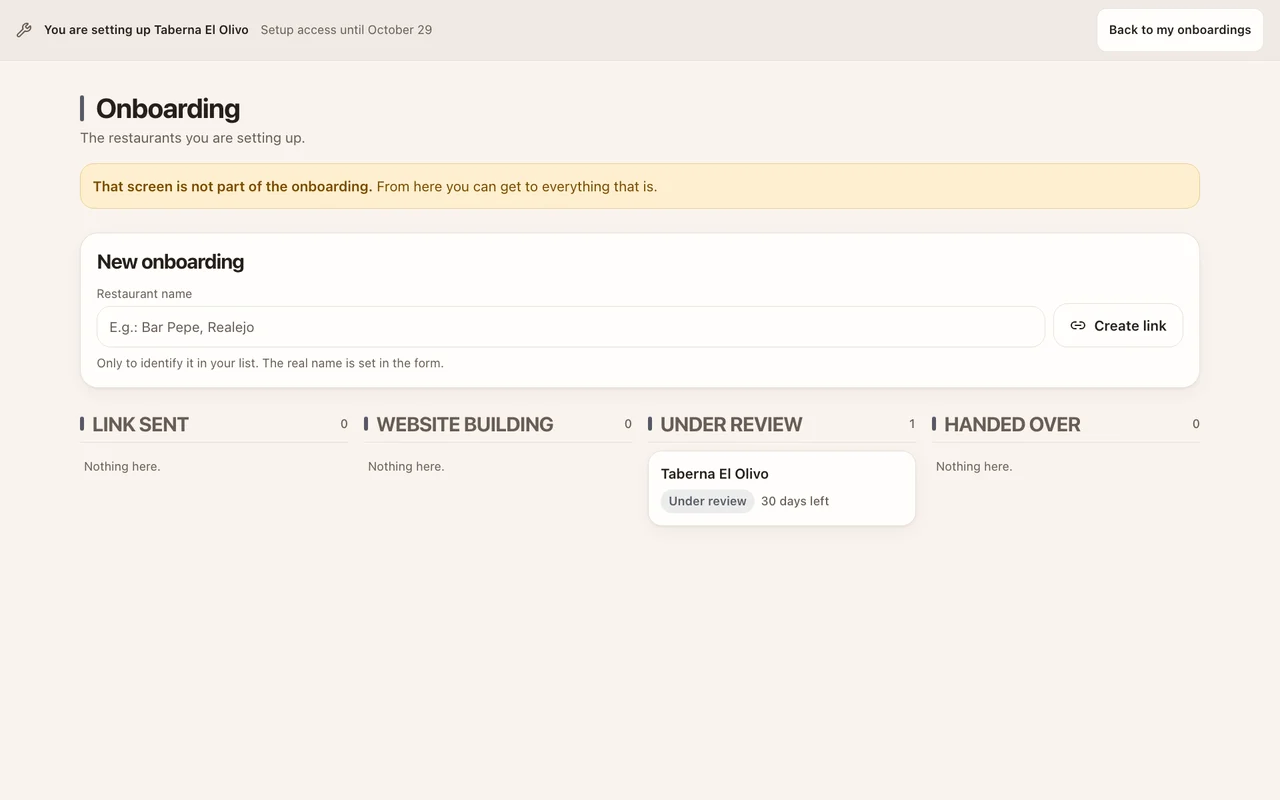
Inside, you work on setting up only. Press «Enter the restaurant». The bar at the top shows which restaurant you are setting up and until when, with «Back to my onboardings». In Prices, tick the zero-price filter, type the missing price and confirm with «Save these changes».
08 You
You prepare; the restaurant confirms. In Allergens, tick what each dish contains, as the kitchen tells you, and press «Save proposal». It shows «Proposal saved». Nothing you save reaches the restaurant’s guests until the owner confirms it from their own account.
09 You
Without tables, bookings have nowhere to sit. On the floor plan press «Add table» for each table and set the seats. Services, shifts and closures are in the booking settings.
10 You
When you hand over, your access to that restaurant closes. Go back to the onboarding and press «Hand over to the owner». Before you confirm you will see how many items wait for their allergen confirmation. Then the welcome sheet appears with their address, username and a temporary password. Show it to them on their phone: it is shown only once and stays on screen until you press «All onboardings».
If the owner already chose their own password, it is not changed: they sign in with theirs.
Come prepared
Ask for it on WhatsApp the day before. Ticks are saved on this device only.
While you set up
If you open another screen, the panel sends you back to your board with «That screen is not part of the onboarding.»
Don’t improvise
Don’t send the form. Call first.
Check the name and one contact, and reload the verification. If it still fails, call.
Don’t send the form again. Call.
Press «Retry the website» once. If it fails again, call.
Ask for a better photo or the PDF. If that doesn’t solve it, call before handing over.
Each onboarding shows the days left. The administrator can add 30 days.
Check the e-mail letter by letter. Then call.
Say «I’ll check and confirm» and call.